

Presentation and automation
TopBot Anomaly strategy
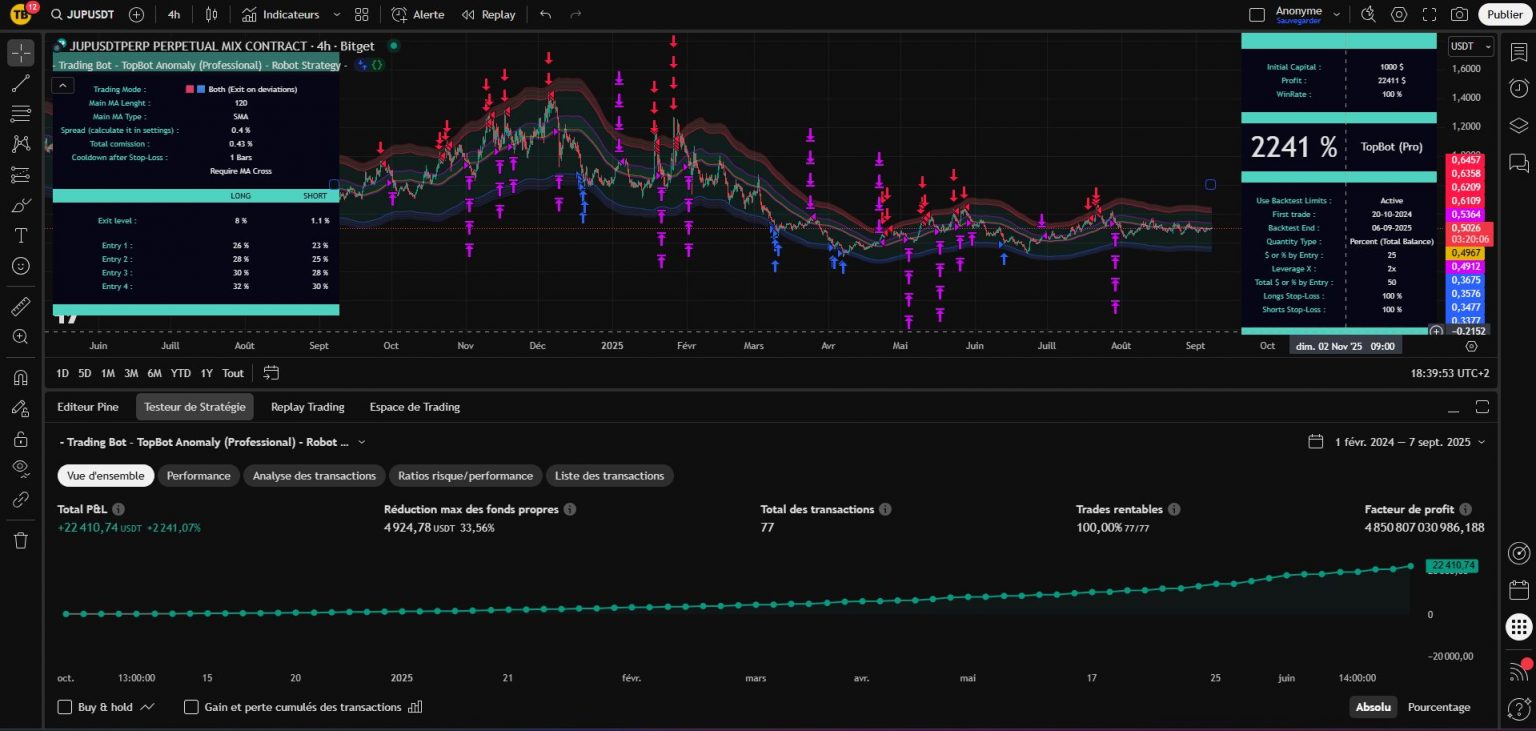
Summary of key points:
- Scalping strategy for short timeframes (mainly 1-5 minutes)
- Use from TradingView / Opening access by registering on our site
- To load the strategy onto TradingView : Click on indicators then search for - Trading Bot - TopBot Anomaly Robot Strategy
- Retrieve the proposed daily settings on one of the Telegram channels
- Set the strategy with these settings, then fine-tune them
- Record an alert once the strategy has been set with your webhook and message (received after creating an instance) and you have a trading bot.
- One instance = One Bitget trading account = Unlimited number of bots (or only by your Tradingview subscription level)
1 - Strategy presentation
TopBot Anomaly is our flagship trading strategy. Profitable, reliable and adaptive, it is particularly effective at capturing market volatility.
This is the core strategy, suitable for beginners and experienced traders alike, and we accompany it with numerous suggestions for daily adjustments on the dedicated Telegram channel.
Its philosophy is based on defining an "ordinary" price channel framing the asset's ordinary fluctuation and volatility, and entering a position when the price leaves this ordinary price channel, considering this event as a price fluctuation anomaly and making a statistical bet on a return to a more reasonable price fluctuation.
Unlike many other strategies, its preferred exit is a variable, adjustable one, serving as both Take-Profit and Stop-Loss. Although it is possible to program a separate Stop-Loss, it works best by letting the price return naturally to its ordinary channel, and depending on the type of setting chosen, safe or aggressive, it can achieve Winrates of 100% on long timesframes and profit factors well in excess of 3 on short timesframes.
Priority will be given to capital management in terms of position size rather than using a stop-loss, as the price can sometimes fall significantly before rising again.
Like all our strategies, TopBot Anomaly can be fully automated directly from TradingView using your trading instance. You consult the suggested settings on Telegram, refine the results on TradingView, then register an alert with your webhook and personal message, and you've just created a trading bot that can be multiplied at will.
Our trading solution is global: we provide the strategy, suggested settings and the technical interface to automate it directly.
2 - Using and adjusting the strategy
A - Get access and load the strategy on TradingView
To use the strategy, you must have a Tradingview account and be registered on our site.
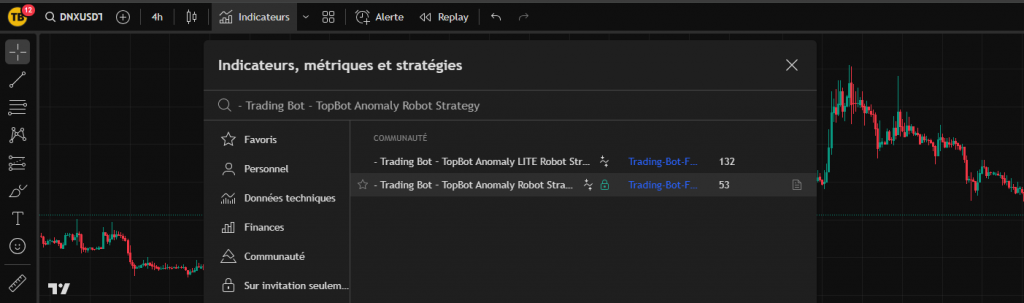
Once these two conditions have been met, simply go to a TradingView chart, click on "Indicators" and search for - Trading Bot - TopBot Anomaly Robot Strategy
If your registration on our site has been validated, the padlock will appear in green, and all you have to do is click (once) on the strategy name to load it onto your chart.
B - Selecting the right TimeFrame and data source
Once the strategy has been loaded onto your chart, you will need to select an asset and a data source. To date, we offer trading instances for automation on Bitget (available in France with a VPN).
Bitget has the advantage of a very large number of cryptocurrencies that can be traded (over 500 in FUTURES), enabling us to multiply our bots on a single trading account. Our backtesters run on Bitget data.
On TradingView, start by selecting a TimeFrame. The strategy works on most of them, although of course you'll need to adapt the settings. You can start by reproducing the settings suggested on the Telegram channel, and together we'll see how to fine-tune them.
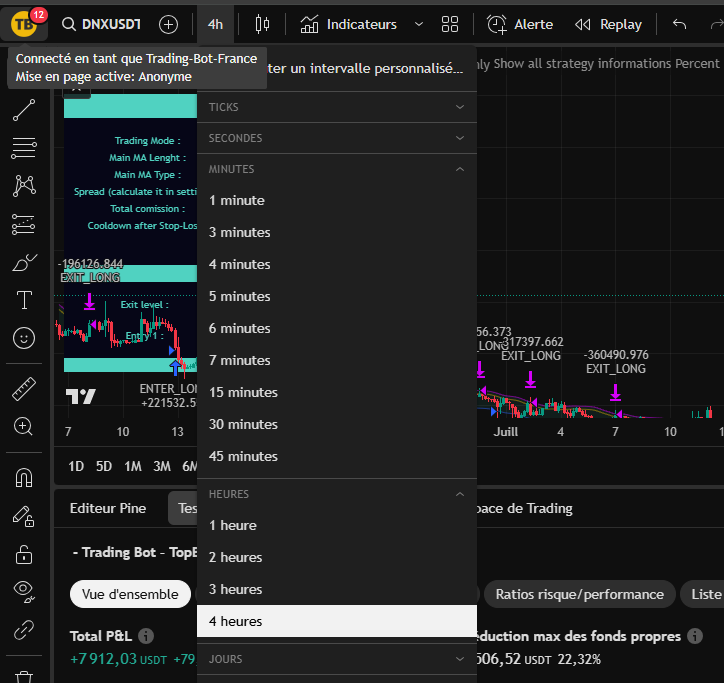
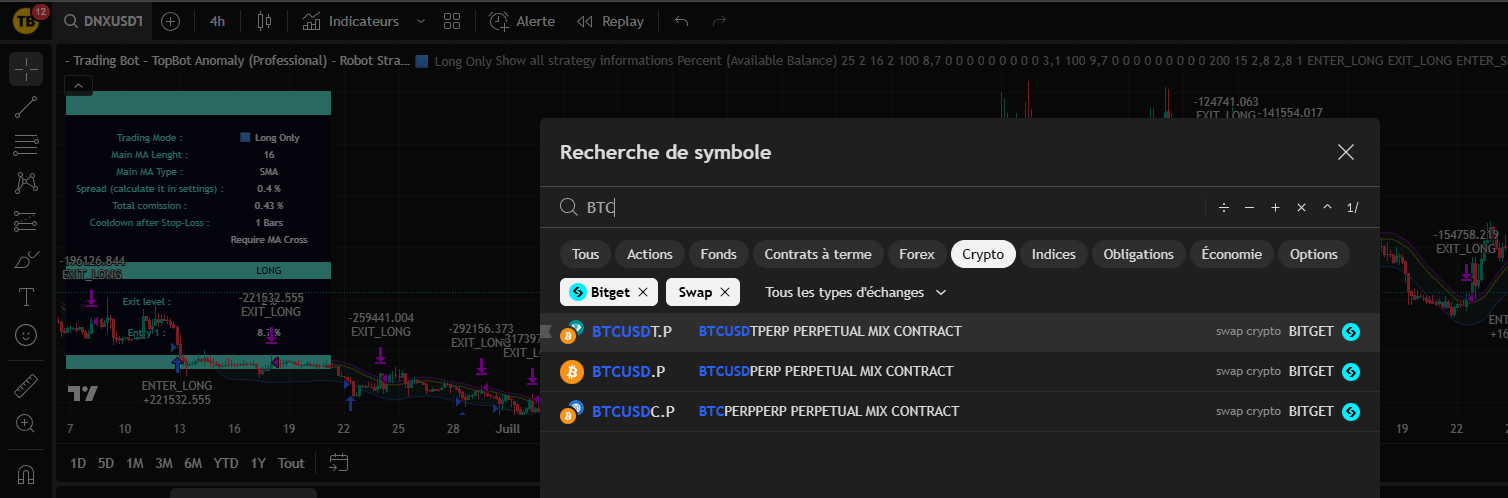
In a second step, we will select an asset and a data source.
For Bitget : Select cryptocurrency pairs by USDT.P (e.g. BTCUSDT.P) in SWAP (see screenshot below) by clicking on the magnifying glass at the top left of your TradingView chart.
You will need USDT in your Bitget FUTURES USDT-M account to trade.
C - Open settings and adjust strategy
The easiest way is to start by retrieving one of the suggested results on our Telegram channel.
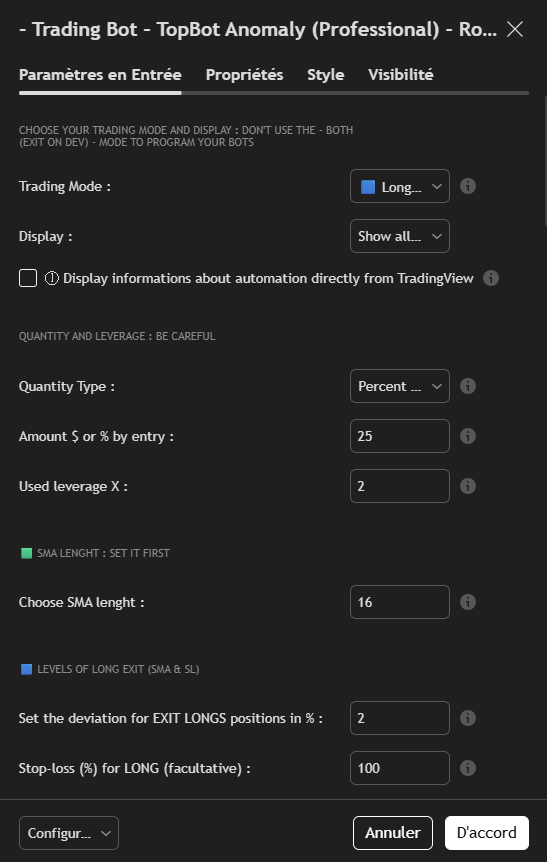
To open the strategy settings, double-click on his name:

Start by programming the strategy according to the backtest results :
- Select the Trading mode
- Set the SMA length
- Set the Position output level (long or short)
- Set the Input level in position (long or short).
There are differences between automatic backtesting and backtesting on Tradingview. As it is the TradingView strategy that will place your orders, it is the settings on the application that must be prioritized..
D - Refine settings
D - Refine settings
Keeping the strategy results on screen, all you have to do now is fine-tune settings. It's a matter of modifying the main values one by one to obtain either the most beautiful curve or the best performance. Here are the three elements to consider: P&L (profit in %), the Winrate (% winning trades) and the Profit factor (strategy profitability, number of dollars won per dollar lost).
To refine the strategy, modify the following values in this order, looking for values a little above and a little below:
- Refine the SMA length (look at the results with a few values above and below, then keep the best result)
- Refine the Position output level (long or short) (look at the results with a few values above and below, then keep the best result)
- Refine the Input level in position (long or short) (look at the results with a few values above and below, then keep the best result)
Generally speaking, the higher the position entry level, the higher the winrate. (but the number of trades is lower)
E - Use multiple entry levels and manage capital
You are invited to read all the Tutorials on capital management if you are a beginner in trading..
Programming choices and risk management are your sole responsibility as a trader.
Capital management is probably the most important element in your success.
For this strategy, we recommend manage your capital by managing the size of your positions. It is also possible to manage risk by using Stop-Loss or both.
Here are two reasonable examples for a strategy set with 1 entry in a single position:
In 5 minutes : 1% (conservative) to 4% (aggressive) of total capital with leverage x5 (max). This means that if the price is 20% unfavorable to you after entering a position (rare in 5 minutes, but it can happen), the position (1 to 2% of total capital) is liquidated (loss of entire position).
In 4 hours : Positions are held longer, prices can fluctuate much more. We'll use a maximum x2 lever.
For example, for conservative capital management:
Position size : 2%-4% lever x1 (maximum theoretical risk of 2%, but in reality liquidation is statistically very unlikely)
For aggressive capital management: Position size: 10% lever x1 or 5% lever x2 (max)
You can use multiple entry levels to smooth your trades. Remember then that each entry will be the amount of the parameters chosen in the position size setting section. Take this into account in your capital management, by dividing the size of your position by the number of entries. to maintain a maximum risk equivalent to the one you have chosen for your trading plan.
F - Automate strategy (Create a Bot)
Our strategies include built-in automation capabilities.
You need to have opened an account (free or paying) on WunderTrading to benefit from this system. This service is free if you use the Hyperliquid exchange, and reasonably priced if you use one of the many other exchanges offered by the platform.
With this integration, all you have to do is set up your strategy, create a "signal bot" on WunderTrading, enter messages for your bot in the strategy settings and create an alert on TradingView.
Each alert can then become an autonomous, automated trading bot.
An alert saves all settings, timeframes, assets, etc. that were on the screen when it was created. Once the alert has been created, you can close the strategy or set it differently, but this will have no impact on your bot, which will continue to run with its original settings in the background, placing buy and sell orders when the time comes.
For stop or edit a trading bot, you need to delete the alert and your bot on WunderTrading and create a new one with the new settings.
You will find a complete and detailed tutorial in the " section. Automation "You'll find it on our website.
3 - Additional technical points / FAQ
- About strategy settings and functions
Here are some optional additional points that will be added to as your questions arise:
- The strategy has a number of additional (secondary) functions that we'll let you discover, including the Swing-Trading as well as Trend filters. Small information bubbles (in English) appear next to each important setting.
- Whatever the settings, the strategy will place the appropriate trading orders. Only the "Both - Exit on deviations" must NOT be used to program bots as there is a risk of conflicts depending on your input and output levels. In this case, you'd prefer a LONG ONLY alert and a SHORT ONLY alert.
- Don't program two bots on the same asset and in the same direction (long or short): Your bots will be in conflict.
- We strongly recommend that youuse a sub-account specific to the use of a strategy. To be on the safe side, you'll default the leverage to x1 for all assets ("set by batch" box) and the tading bots will send the leverage used.
- If you delete an alert and a position is open, you have to close it on your exchange because it will never be closed.
- The average time between the triggering of the Tradingview alert and the placing of the order is 8 to 12 seconds, depending on the market. Avoid timeframes that are too short.
- About Trading-Bot and TradingView subscriptions
- We never run promotions on our site. Our rates are already very low, given the value of the service we provide. The best time to start is always now.
- Ultimately, we recommend the Tradingview Premium subscription. It means no expiry date for alerts and the ability to program 400 bots, while offering more history at a fair price. TradingView discounts 70% twice a year. We advise you to wait for these times, subscribe and cancel the automatic renewal. You'll benefit from the 70% during the next promotion and your remaining days will be accumulated.
 English
  French
  Spanish