To automate your favorite TopBot strategy from TradingView directly on your broker, you can use WunderTrading, which allows you to link your TradingView strategy directly to your favorite broker. If you trade on Hyperliquid, this service is even free!
Simply follow the steps below (they are detailed further down on this page):
In the "My Exchange" section on WunderTrading, choose your preferred broker and link your account to WunderTrading.
Still in WunderTrading, create a "signal bot". Make a note of the position entry and exit messages you'll be given during creation.
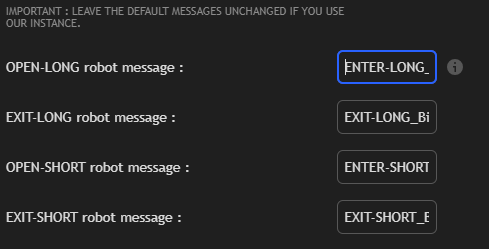
Set up our strategies on TradingView and in the "Bot Messages" section, simply enter the messages for your WunderTrading bot for position entries and exits.
Create an alert once your strategy has been set up and the messages entered in the parameters. Configure your alert to send a webhook to the address given to you when you create your bot, and in the "Message" section of the alert, enter the message given to you when you create your bot.
Your strategy now monitors the market 24 hours a day and will place trading orders for you when the time comes!
To delete a bot, delete your alert on TradingView and your bot on Wundertrading. That's all there is to it.
Important notes:
Position size and leverage can be set via wundertrading and/or your broker. See WunderTrading terms of use for details.
WunderTrading is an external and independent service of Trading-Bot.fr. To help you manage your options and services, please contact their customer service department.
1 - Register with WunderTrading and link your Exchange
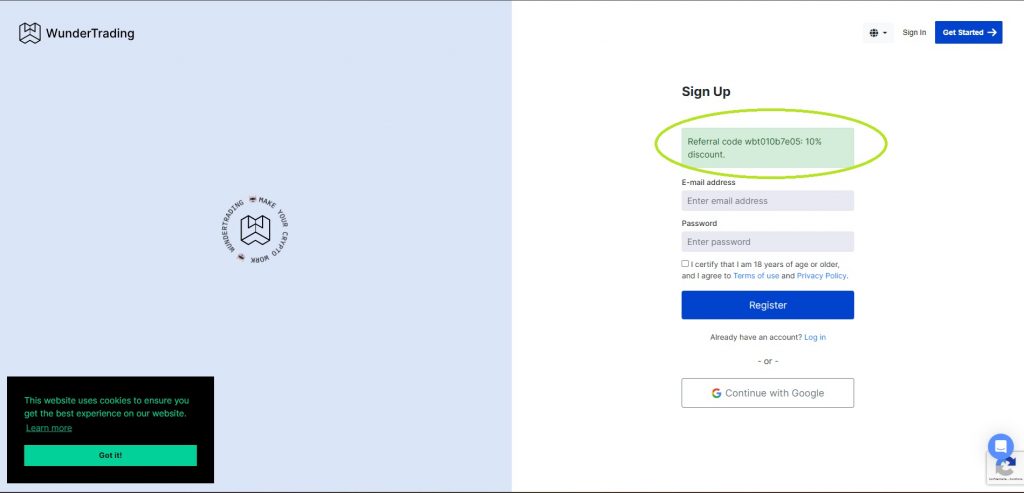
Register for free with WunderTrading. Their services are free if you use the Hyperliquid (decentralized) exchange. If you follow our link, you'll get discounts if you need to use other exchanges or options in the future.
Click on "My Exchange" then "+ Add Exchange" and follow the instructions for the broker you are going to use. WunderTrading has an extensive support base, and their technical team can respond quickly and guide you through any problems at this stage.
2 - On TradingView, set the strategy
The setting steps are detailed in the Tutorial of our site.
3 - Create a new Signal Bot on WunderTrading
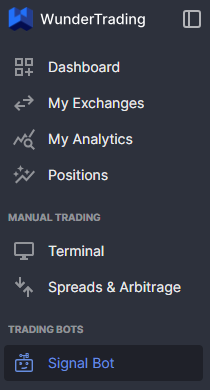
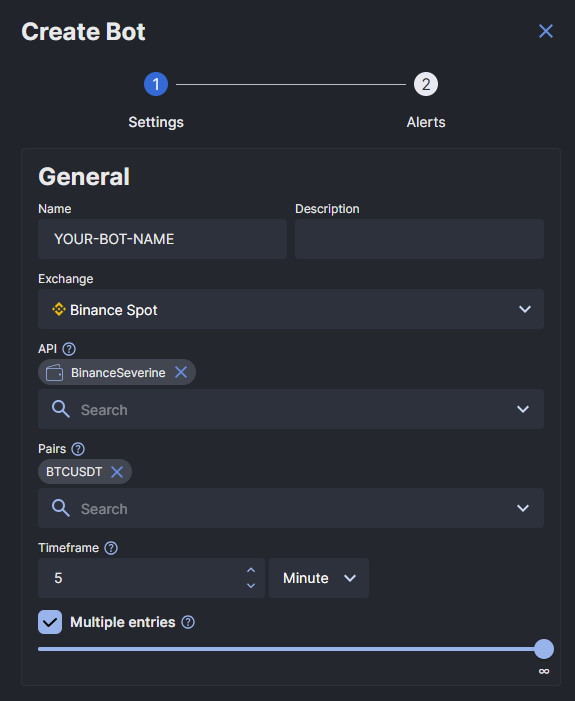
Click on "Signal Bot" in the main menu, then on "+ Create Bot".
Then fill in the required information:
Select the account (api) on which the bot is to trade
Select the correct pair and TimeFrame for your setting on TradingView
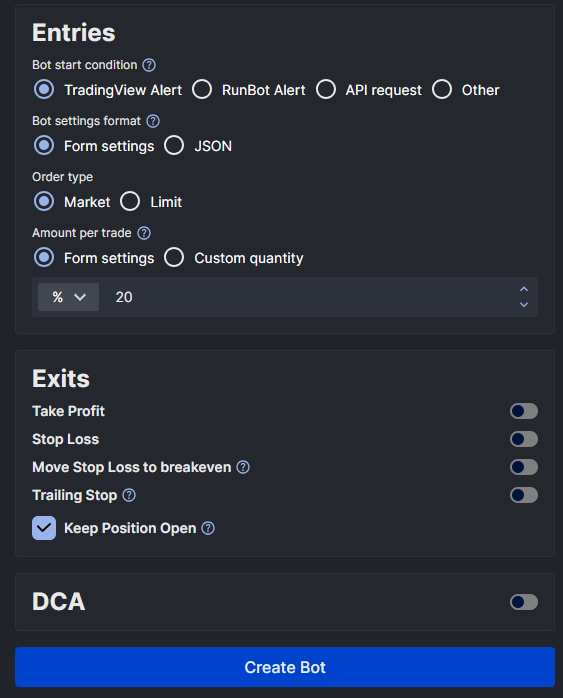
IMPORTANT: Select the size of each position and the leverage to be used. Please note that some brokers require the default leverage to be set directly on the exchange. Please check with the WunderTrading team depending on the broker used.
Set your bot's other parameters according to the expected behavior.
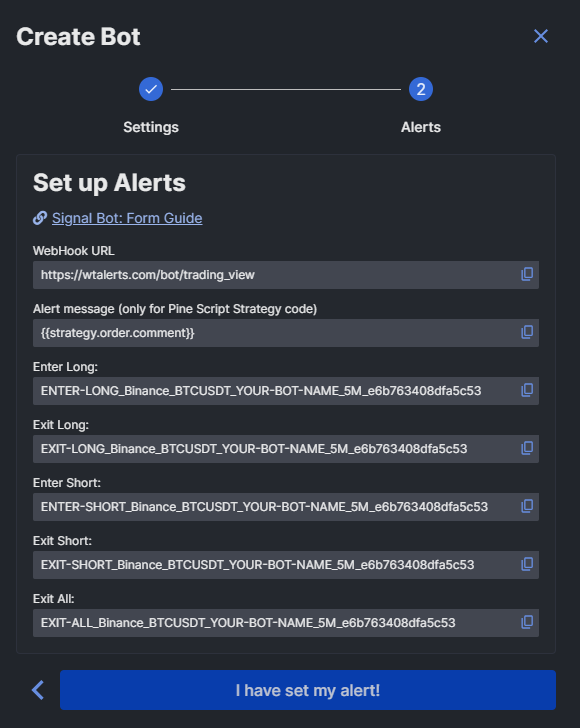
On the next page, you now have your alert signals you'll need to enter into TradingView BEFORE creating your alert.
You'll be able to access this information again once your bot has been created.
You'll find all the information you need (position entry and exit messages, Webhook URL and text for the TradingView alert message).
Keep this window accessible for copying messages, and you'll be able to validate the bot definitively once you've created your alert on TradingView.
4 - On TradingView, enter the bots' messages in the configuration window
Simply copy the position entry and exit messages into your strategy settings.
5 - Create an alert on TradingView
Click on the "Alert" alarm clock at the top of your TradingView screen.
Click on the "Alert" alarm clock at the top of your TradingView screen.
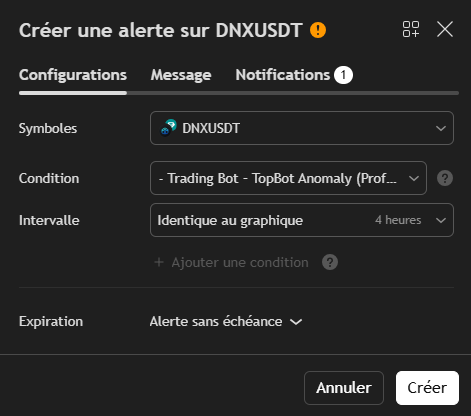
The following window appears. Check that "Condition" is set to strategy (not price).
Next, we'll modify the content of the "Message" and "Notification" tabs.
Click on the "Alert" alarm clock at the top of your TradingView screen.
The following window appears. Check that "Condition" is set to strategy (not price).
Next, we'll modify the content of the "Message" and "Notification" tabs.
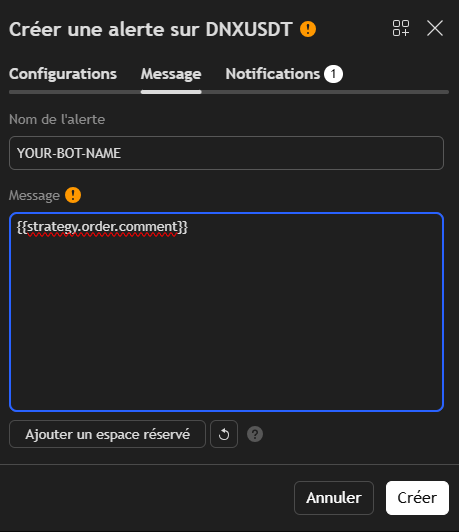
In the "Message" tab, paste {{strategy.order.comment}}
It's also a good idea to give your bot a specific name that you can clearly identify (for example: "BTC/USDT - LONG - 5M - MACD").
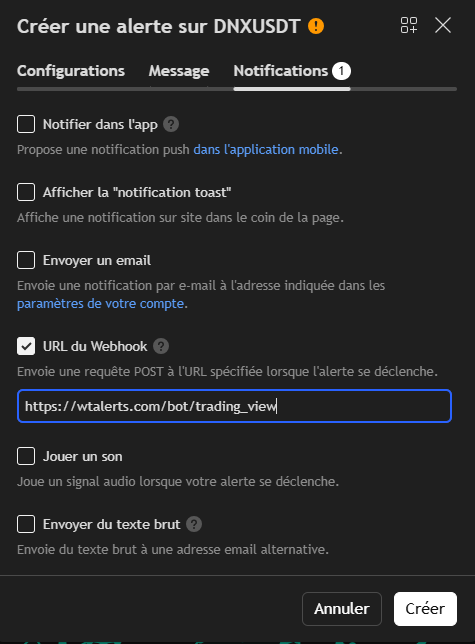
In the "Notifications" tab, check the "Webhook URL" box (requires a paid TradingView subscription) and enter the URL of the wundertrading webhook present in your bot.
Default: https://wtalerts.com/bot/trading_view
6 - Register your alert on TradingView AND your bot on WunderTrading.
Once your alert has been registered on TradingView and your bot validated on Wundertrading, the strategy is now active and monitoring the market for you. When the time comes, it will place open and close market orders.
To delete a bot, simply suspend or delete your TradingView alert and your WunderTrading bot.
You can create as many bots as your subscription levels allow (400 if Premium subscription on tradingview).
7 - Start paper trading!
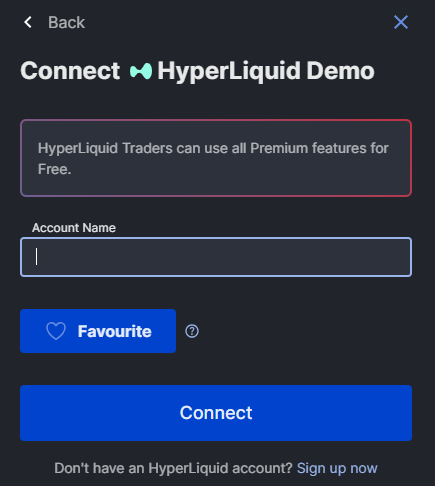
For your first set-ups, WunderTrading lets you create a "Demo" account in "My Exchange" / "Add Exchange".
Instead of linking a real account, you create a demo account that you can select when creating your bots. This way, you can follow the progress of your trading directly from WunderTrading, without risking your capital until you're sure you've set up and mastered the system and your strategy settings.




 English
  French
  Spanish