

Presentation and automation
Pyramidal Candle RSI strategy
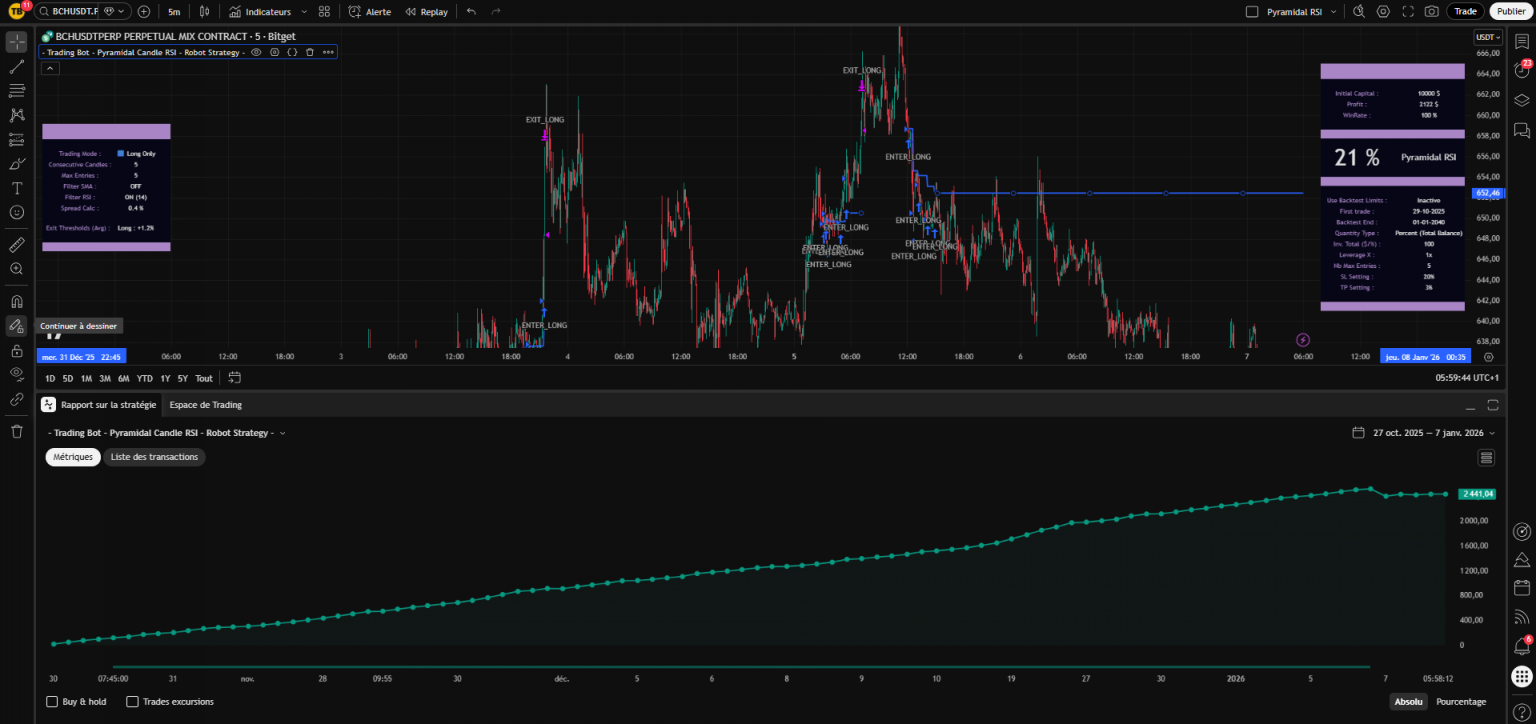
- A stable, versatile strategy that you can find the official presentation on TradingView here
- Use from TradingView / Opening access by registering on our site
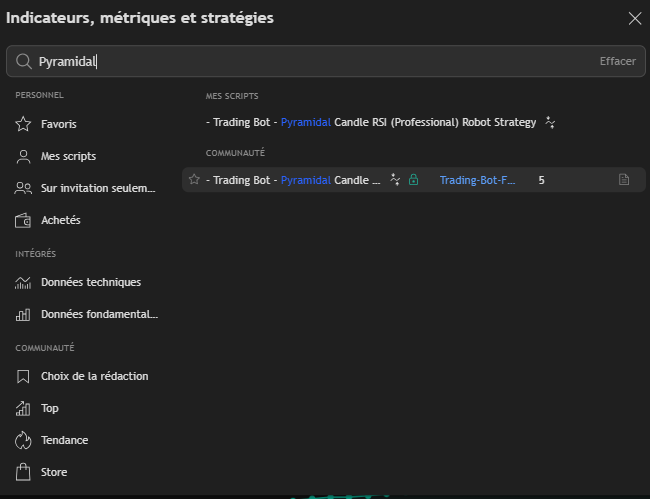
- To load the strategy onto TradingView : Click on indicators then search for - Trading Bot - Pyramidal Candle RSI - Robot Strategy -
- This strategy has automatic backtests. Backtests must be manually refined in TradingView before being validated.
- Set strategy (see below)
- Record an alert once the strategy has been set with your webhook and message (received after creating an instance) and you have a trading bot.
- One instance = One Bitget trading account = Unlimited number of bots (or only by your Tradingview subscription level)
1 - Strategy presentation
This strategy seeks to enter positions based on a sequence of candles in a given direction (bullish or bearish). It uses an RSI indicator to confirm the trend, and can also incorporate a Simple Moving Average (SMA) filter. The strategy allows you to take several successive positions (pyramiding) in the same direction to increase exposure if the trend is confirmed. It includes take profit (TP) and stop loss (SL) options to manage risk. The aim is to buy low and sell high, or vice versa, in line with market dynamics. Capital management allows you to define position size according to account balance and apply leverage. Filters such as RSI and SMA help avoid entry in unfavorable market conditions. Positions are exited either when the target profit is reached, when the stop loss is hit, or when the average exit threshold is reached.
The trading logic is based on :
Position entry : Wait for a specific sequence of candles (e.g. 2 consecutive bullish candles for a long) while respecting the RSI (e.g. rising RSI for a long) and SMA (price above SMA for a long) filters.
Pyramidage : If a position is already open and candle conditions in the same direction are repeated, the strategy can add to the existing position, up to a defined maximum number of entries.
Position output : Close the position when the price reaches a certain percentage of profit compared with the average entry price, or when the stop loss is reached.
Parameters allow you to customize the type of trading (long, short, or both), risk management (TP/SL, exit thresholds), indicators (RSI/SMA lengths), and capital management (amount invested, leverage).
2 - Using and adjusting the Pyramidal Candle RSI strategy
A - Get access and load the strategy on TradingView
To use the strategy, you must have a Tradingview account and be registered on our site.
Once these two conditions have been met, simply go to a TradingView chart, click on "Indicators" and search for :
- Trading Bot - Pyramidal Candle RSI - Robot Strategy -
If your registration on our site has been validated, the padlock will appear in green, and all you have to do is click (once) on the strategy name to load it onto your chart.
B - Selecting the right TimeFrame and data source
Once the strategy has been loaded onto your chart, you will need to select an asset and a data source. To date, we offer trading instances for automation on Bitget (available in France with a VPN).
Bitget has the advantage of a very large number of cryptocurrencies that can be traded (over 500 in FUTURES), enabling us to multiply our bots on a single trading account. Our backtesters run on Bitget data.
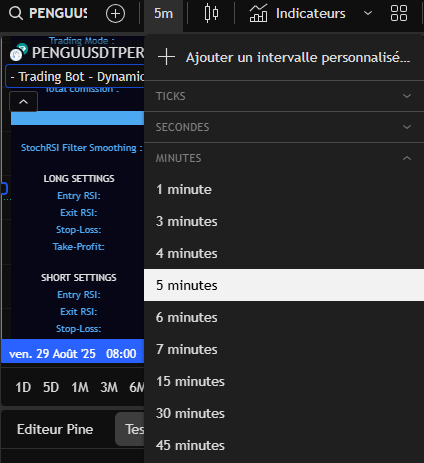
On TradingView, start by selecting a TimeFrame. The strategy works on most of them, although of course you'll need to adapt the settings. You can start by reproducing the settings suggested on the Telegram channel, and together we'll see how to fine-tune them.
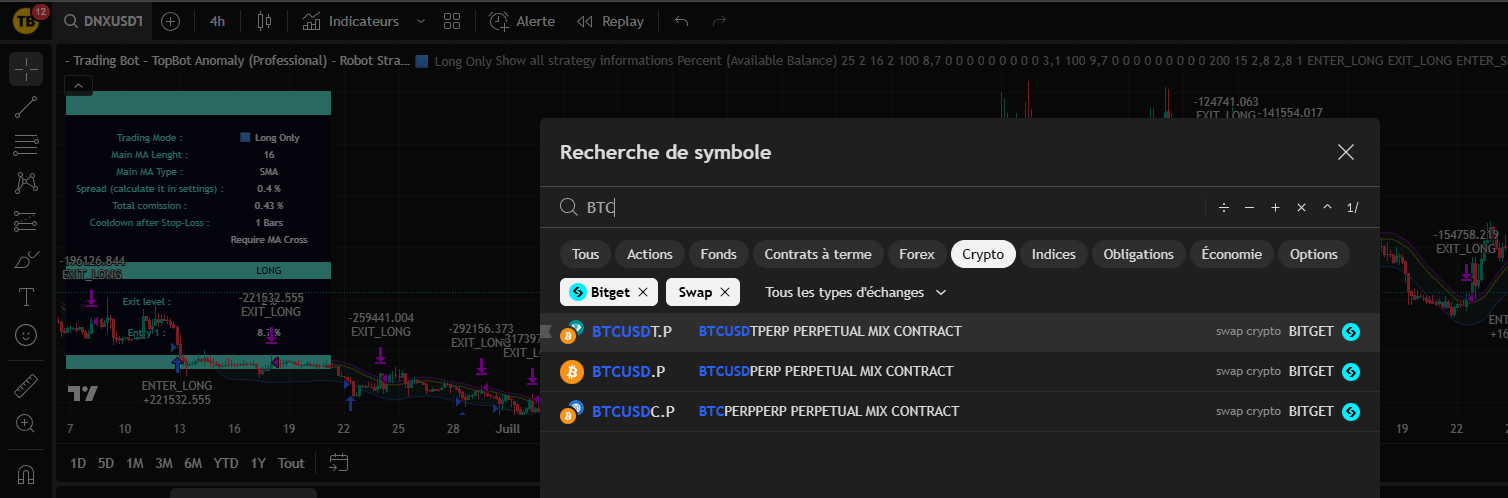
In a second step, we will select an asset and a data source.
For Bitget : Select cryptocurrency pairs by USDT.P (e.g. BTCUSDT.P) in SWAP (see screenshot below) by clicking on the magnifying glass at the top left of your TradingView chart.
You will need USDT in your Bitget FUTURES USDT-M account to trade.
C - Open settings and adjust strategy
The easiest way is to start by retrieving one of the results from the automatic backtests on one of our Telegram channels.
To open the strategy settings, double-click on his name:

Start by programming the strategy by setting :
Select the Trading mode (Long Only or Short Only)
Set the Number of consecutive candles (1st entry): Usually 3 or 4 to trigger the first position quickly.
Set the Maximum number of entries (Pyramiding): Generally between 2 and 5 to effectively smooth your entry price. Please note! If you set 1% of capital per entry, each pyramiding level will enter with 1% of capital.
Set the Filters (RSI & SMA) Activate the RSI (Length 14 by default) or the SMA (Length 50) to trade only within the trend.
Set the Output threshold (%) (Output Threshold): This is your main profit target, generally between 0.5 and 2.0 compared with the average price.
Adjust the Stop Loss (%) Essential safety feature to cut losses if pyramiding fails (generally between 5% and 15%).
Visit Output threshold (%) is very important for best results, as it defines how quickly the robot cashes in on pyramid gains. Once you've found the right level, it's sometimes worthwhile resetting the Max. number of inputs from the beginning to refine the results.
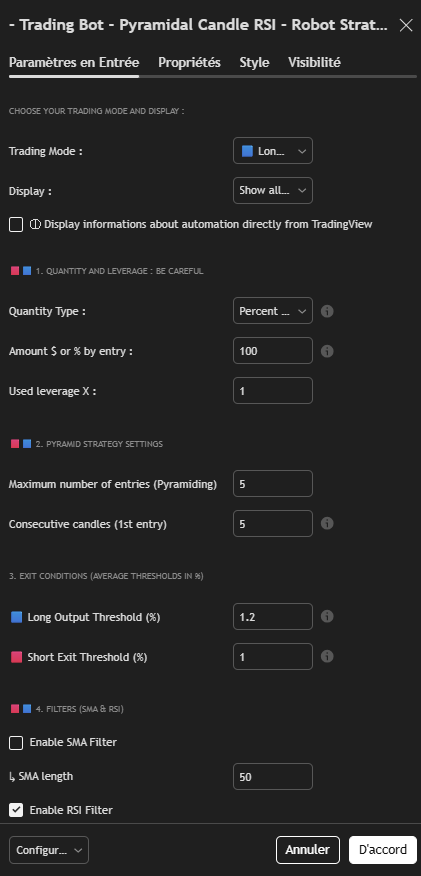
D - Refine settings
- The level of Take-Profit is very important to obtain the best results. Once you've found the right level, it's sometimes worth repeating the set-up sequence from the beginning to refine the results.
E - Managing capital
You are invited to read all the Tutorials on capital management if you are a beginner in trading..
Programming choices and risk management are your sole responsibility as a trader.
Capital management is probably the most important element in your success.
For this strategy, we recommend manage your capital by managing the size of your positions. It is also possible to manage risk by using Stop-Loss or both.
Here are two reasonable examples for a strategy set with 1 entry in a single position:
In 5 minutes : 1% (conservative) to 4% (aggressive) of total capital with leverage x5 (max). This means that if the price is 20% unfavorable to you after entering a position (rare in 5 minutes, but it can happen), the position (1 to 2% of total capital) is liquidated (loss of entire position).
In the case of multiple entries, divide the size of your positions by the number of entries to maintain capital management.
For example, for conservative capital management:
Position size : 2%-4% lever x1 (maximum theoretical risk of 2%, but in reality liquidation is statistically very unlikely)
For aggressive capital management: Position size: 10% lever x1 or 5% lever x2 (max)
You can use multiple entry levels to smooth your trades. Remember then that each entry will be the amount of the parameters chosen in the position size setting section. Take this into account in your capital management, by dividing the size of your position by the number of entries. to maintain a maximum risk equivalent to the one you have chosen for your trading plan.
F - Automate strategy (Create a Bot)
Our strategies include built-in automation capabilities.
You need to have opened an account (free or paying) on WunderTrading to benefit from this system. This service is free if you use the Hyperliquid exchange, and reasonably priced if you use one of the many other exchanges offered by the platform.
With this integration, all you have to do is set up your strategy, create a "signal bot" on WunderTrading, enter messages for your bot in the strategy settings and create an alert on TradingView.
Each alert can then become an autonomous, automated trading bot.
An alert saves all settings, timeframes, assets, etc. that were on the screen when it was created. Once the alert has been created, you can close the strategy or set it differently, but this will have no impact on your bot, which will continue to run with its original settings in the background, placing buy and sell orders when the time comes.
For stop or edit a trading bot, you need to delete the alert and your bot on WunderTrading and create a new one with the new settings.
You will find a complete and detailed tutorial in the " section. Automation "You'll find it on our website.
3 - Additional technical points / FAQ
Here are some optional additional points that will be added to as your questions arise:
- The strategy features a number of additional (optional) settings. Small information bubbles appear next to each important setting.
- Prefer a LONG ONLY alert and a separate SHORT ONLY alert to program your bots.
- Don't program two bots on the same asset and in the same direction (on several different strategies). (long or short): Your bots will be in conflict.
- We strongly recommend that youuse a sub-account specific to the use of a strategy. To be on the safe side, you'll default the leverage to x1 for all assets ("set by batch" box) and the tading bots will send the leverage used.
- If you delete an alert and a position is open, you have to close it on your exchange because it will never be closed.
- The average time between the triggering of the Tradingview alert and the placing of the order is 8 to 12 seconds, depending on the market. Avoid timeframes that are too short.
- About trading instances
- One instance created on our site = One trading account on Bitget = Unlimited number of bots (or only by your Tradingview subscription level)
- Complete information for creating an instance can be found here
- About Trading-Bot and TradingView subscriptions
- We never run promotions on our site. Our rates are already very low, given the value of the service we provide. The best time to start is always now.
- Ultimately, we recommend the Tradingview Premium subscription. It means no expiry date for alerts and the ability to program 400 bots, while offering more history at a fair price. TradingView discounts 70% twice a year. We advise you to wait for these times, subscribe and cancel the automatic renewal. You'll benefit from the 70% during the next promotion and your remaining days will be accumulated.
 English
  French
  Spanish